The integration uses OAuth authentication. Usage limits depend on your Figma account’s plan.
For Users
Using Figma Links in Tasks
Include Figma links in your task descriptions to guide AI implementation.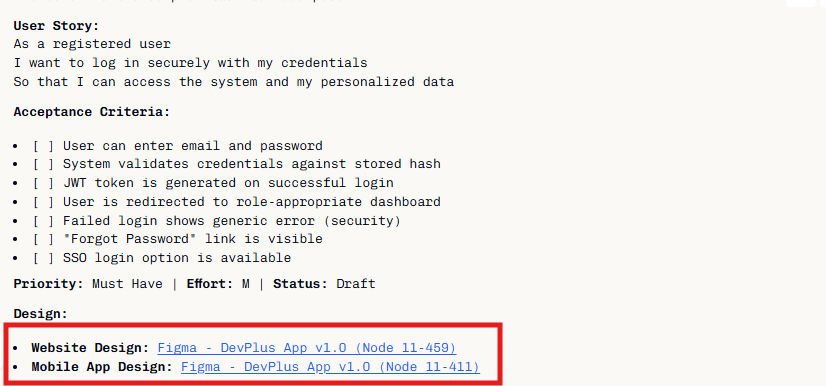
What the AI Can Do
| Capability | Description |
|---|---|
| Read | View layouts, styles, components, and specifications |
| Create | Generate new Figma designs and diagrams |
| Edit | Modify existing designs directly in Figma |
| Export | Extract assets, colors, and typography values |
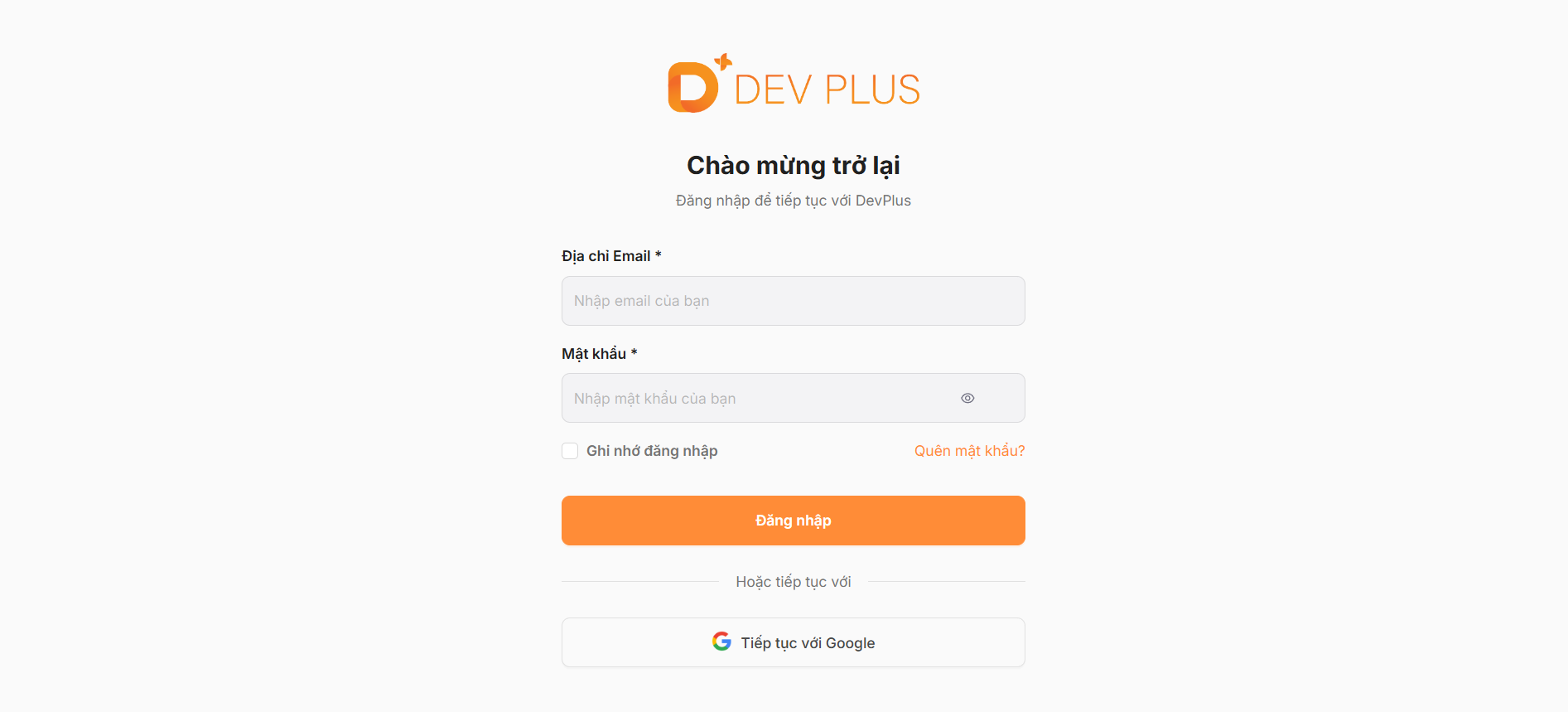
Example Workflow
For Administrators
Authentication
The Figma MCP uses OAuth authentication. No manual API key configuration required.Student Account Limitations
If using a Figma Student/Education account, be aware of these restrictions:Rate limits on external files
Rate limits on external files
When accessing files created by other accounts, rate limits may apply to the file owner’s account, not yours. This can affect performance when working with externally-owned designs.
Limited edit access for non-Student users
Limited edit access for non-Student users
Files created by Student accounts can only be edited by non-Student users for 7 days. After that, they become view-only. Team members without Student accounts will have limited long-term access.
Best Practices
- Create designs within the authenticated Figma account
- Use clear naming for files and frames
- Group related designs (website and mobile) together
- Mark designs as “Ready for Dev” when finalized
Troubleshooting
AI cannot access Figma file
AI cannot access Figma file
- Verify the authenticated account has access to the file
- Check the file URL is correct
- Ensure the file is not private or restricted
Rate limit errors
Rate limit errors
- Reduce frequency of Figma API calls
- Check if file is owned by external account (may hit their limits)
- Wait and retry after a few minutes
Cannot edit external design
Cannot edit external design
- Verify the authenticated account has edit permissions
- For Student accounts, ensure the file is owned by the same account
- Check if 7-day edit window has expired for non-Student collaborators