VS Code Web is a lightweight version of Visual Studio Code that runs entirely in your browser, with syntax highlighting, IntelliSense, and extension support.
For Users
Opening VS Code Web
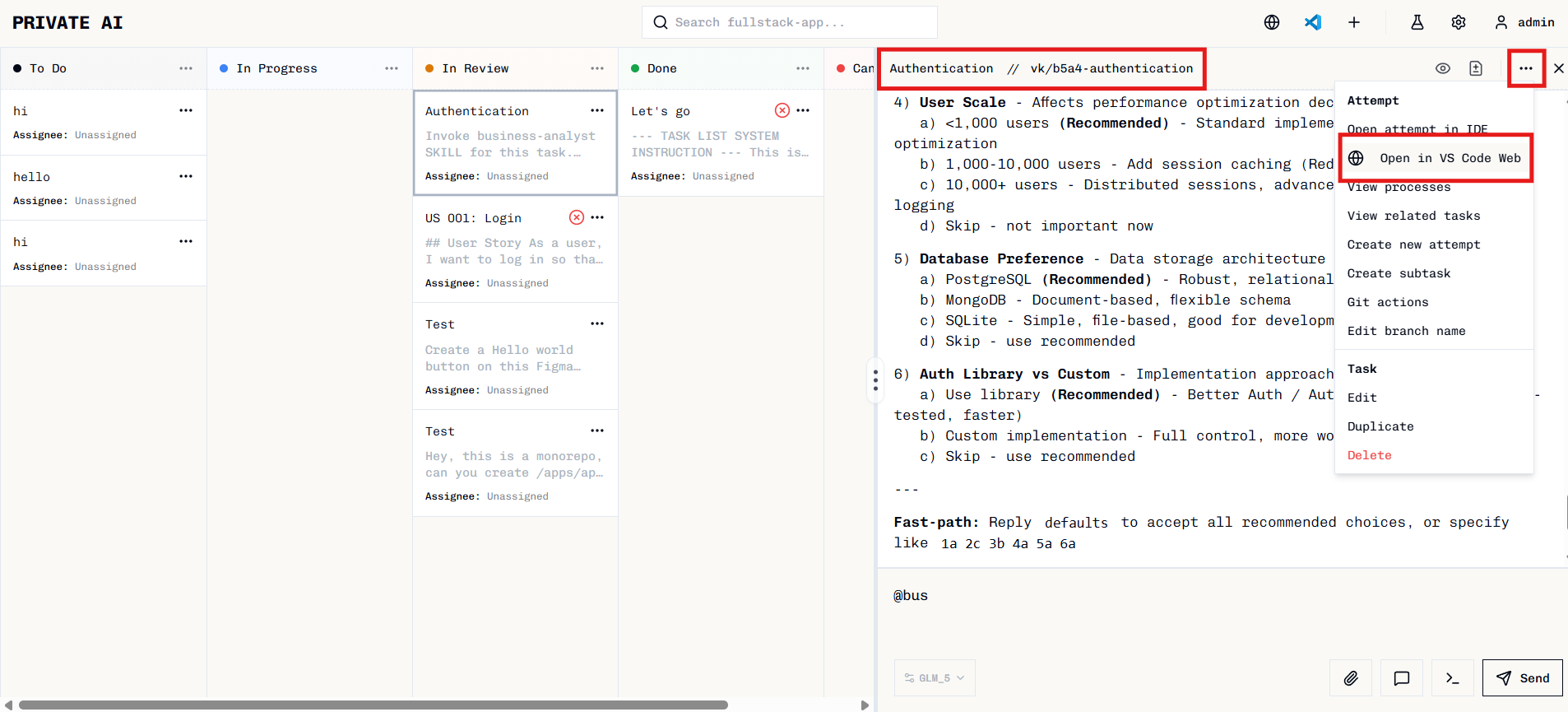
There are two ways to open VS Code Web, depending on what you want to work on: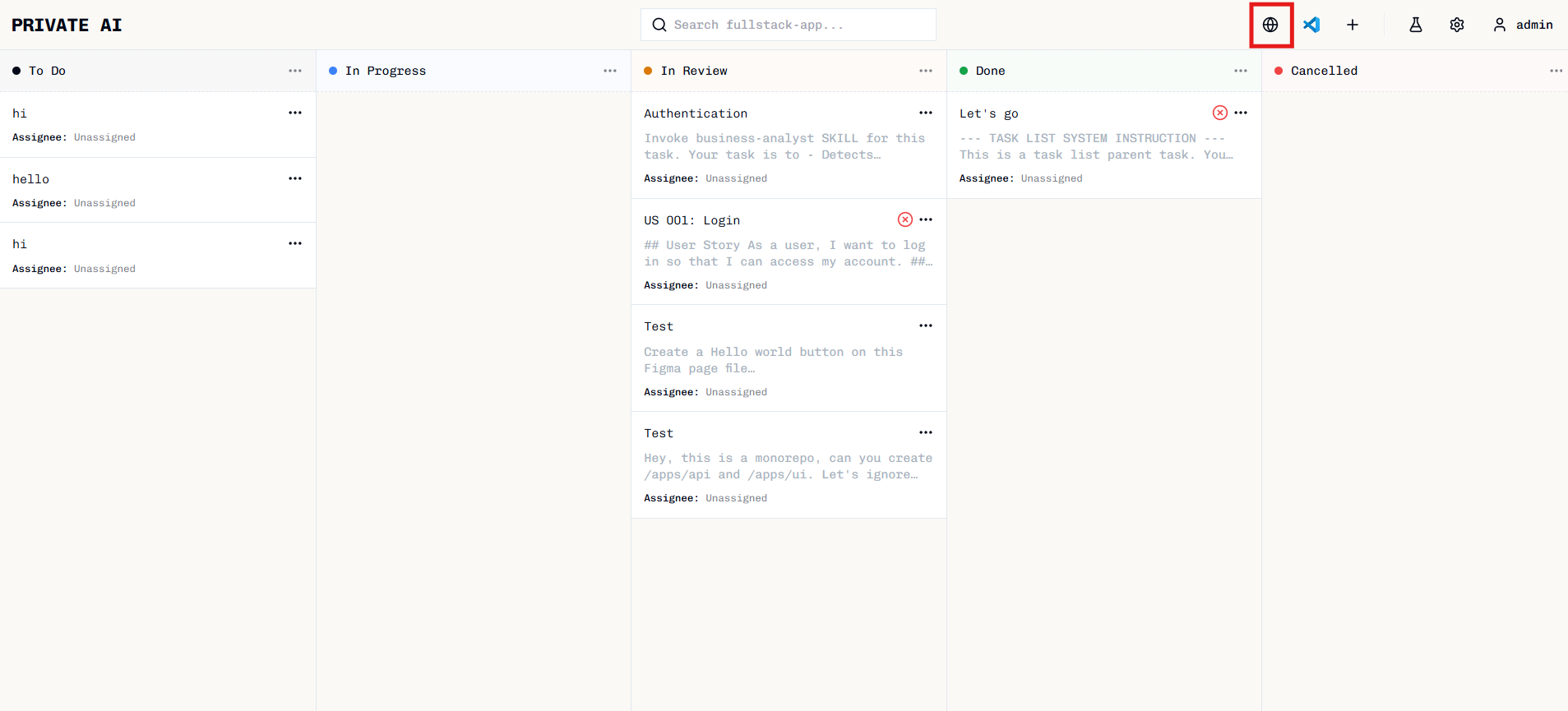
| Button Location | Opens |
|---|---|
| Project header (global icon) | Entire project repository |
| Task detail (local icon) | Specific task worktree |
Opening a Task Worktree
Task worktrees contain the isolated git worktree where AI agents perform their work.Click the local icon
In the task detail panel, click the Open in VS Code Web button inside the workspace section.
Opening the Project Repository
To browse the entire project repository:For Administrators
Prerequisites
- openvscode-server installed and configured
- Network connectivity between Private AI and the VS Code server
Installing openvscode-server
Download and install openvscode-server from the official repository. Follow the installation instructions in their README.Starting openvscode-server
- Production
- Development
Use PM2 to keep the server running persistently:Replace:
<path-to-openvscode-server>with your installation pathYOUR_TOKENwith a secure token/var/tmp/vibe-kanban/worktreeswith your worktrees directory path
Configuring Private AI
Set VS Code URL
Enter your openvscode-server URL: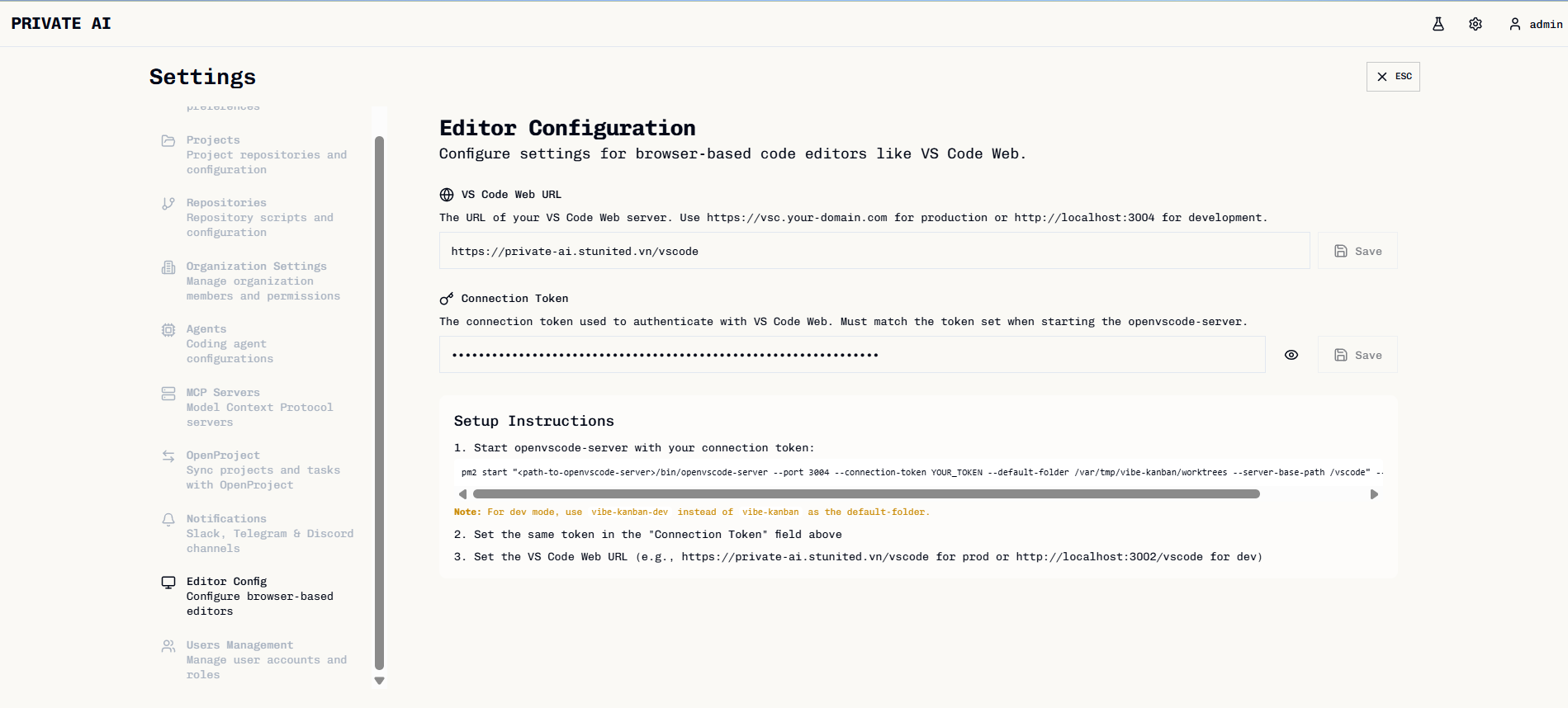
- Production:
https://your-domain.com/vscode - Development:
http://localhost:<PORT>(use your custom port)
Security Best Practices
- Use a strong, randomly generated token (minimum 32 characters)
- Rotate tokens regularly
- Never commit tokens to version control
- Always use HTTPS in production
- Limit openvscode-server access to Private AI users only
Troubleshooting
VS Code Web fails to open
VS Code Web fails to open
- Verify VS Code URL is correctly configured
- Check connection token matches between Private AI and openvscode-server
- Ensure openvscode-server is running and accessible
Authentication errors
Authentication errors
- Verify connection token is set correctly in Editor Config
- For production, ensure cookies are not blocked by the browser
- Check openvscode-server was started with
--connection-tokenflag
Folder not found
Folder not found
- Verify the workspace exists
- Check openvscode-server has access to the worktrees directory
Button not visible
Button not visible