For Users
Logging In
Users receive accounts from administrators. There is no self-registration.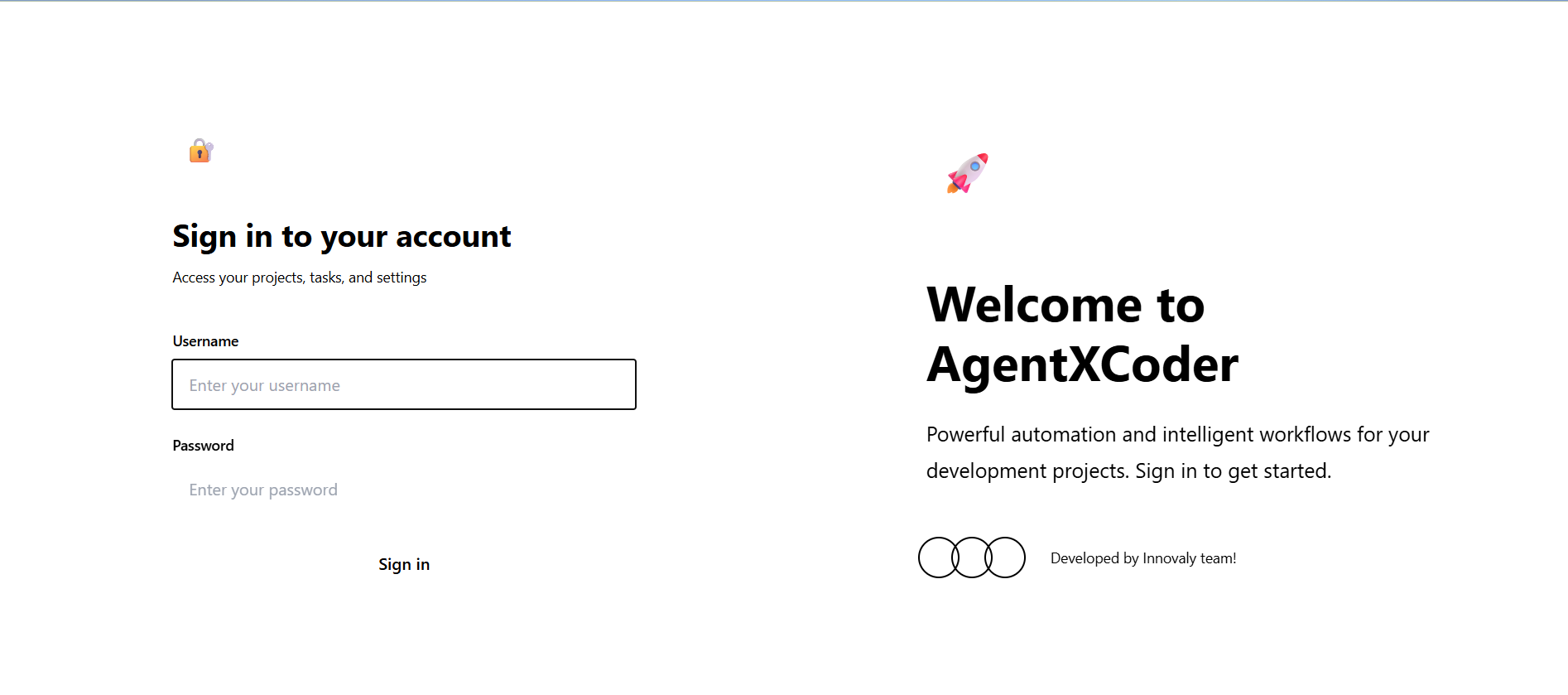
If you forget your password, contact an administrator to reset it.
User Roles
| Role | Description | Permissions |
|---|---|---|
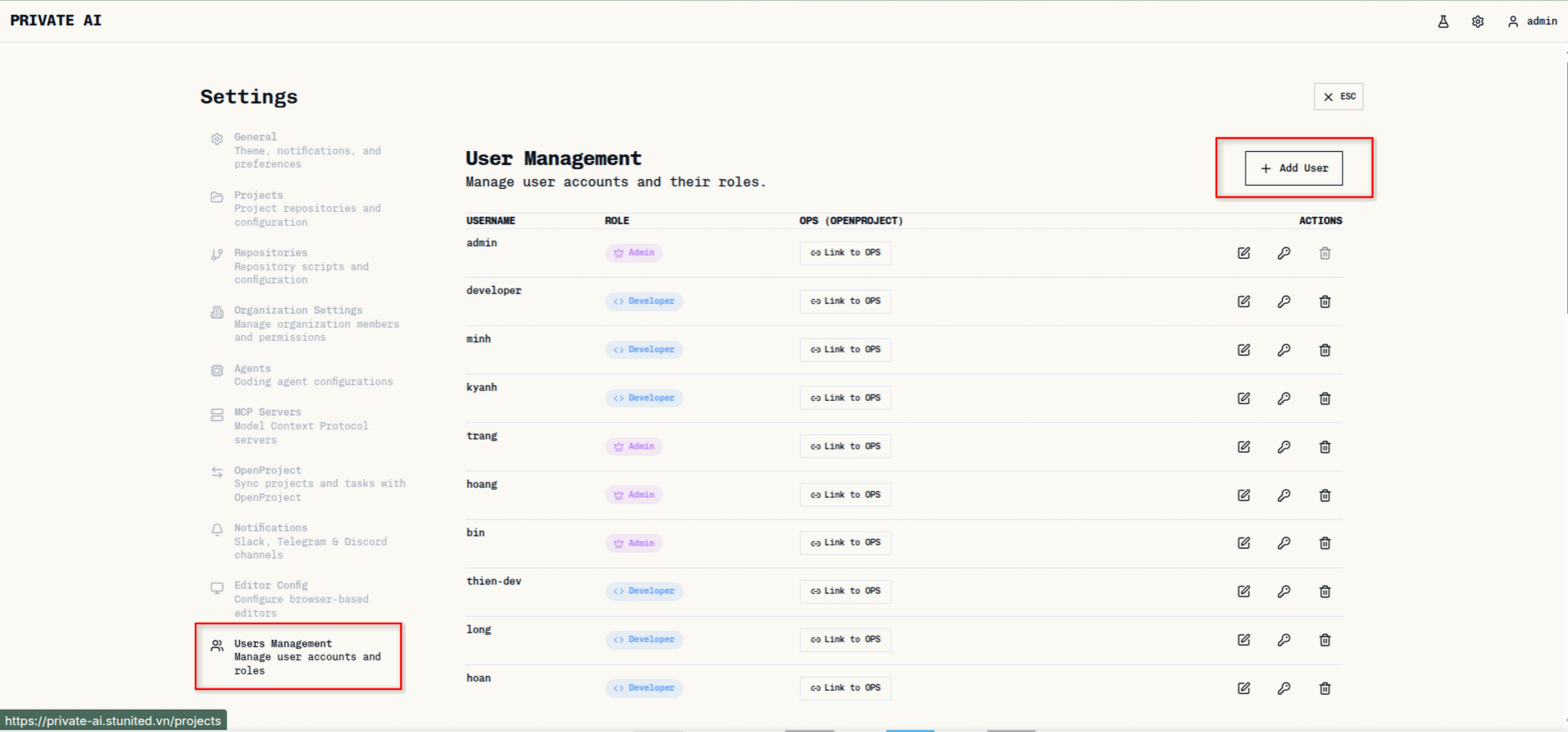
| Admin | Full system access | Create, read, update, and delete all user accounts; manage system settings |
| Developer | Standard user access | Access assigned projects and tasks; use AI coding agents |
Admin users are marked with a shield icon in the user list.
For Administrators
Accessing User Management
Role Permission Matrix
Use the permission matrix to toggle what each role can do. Admin permissions are locked.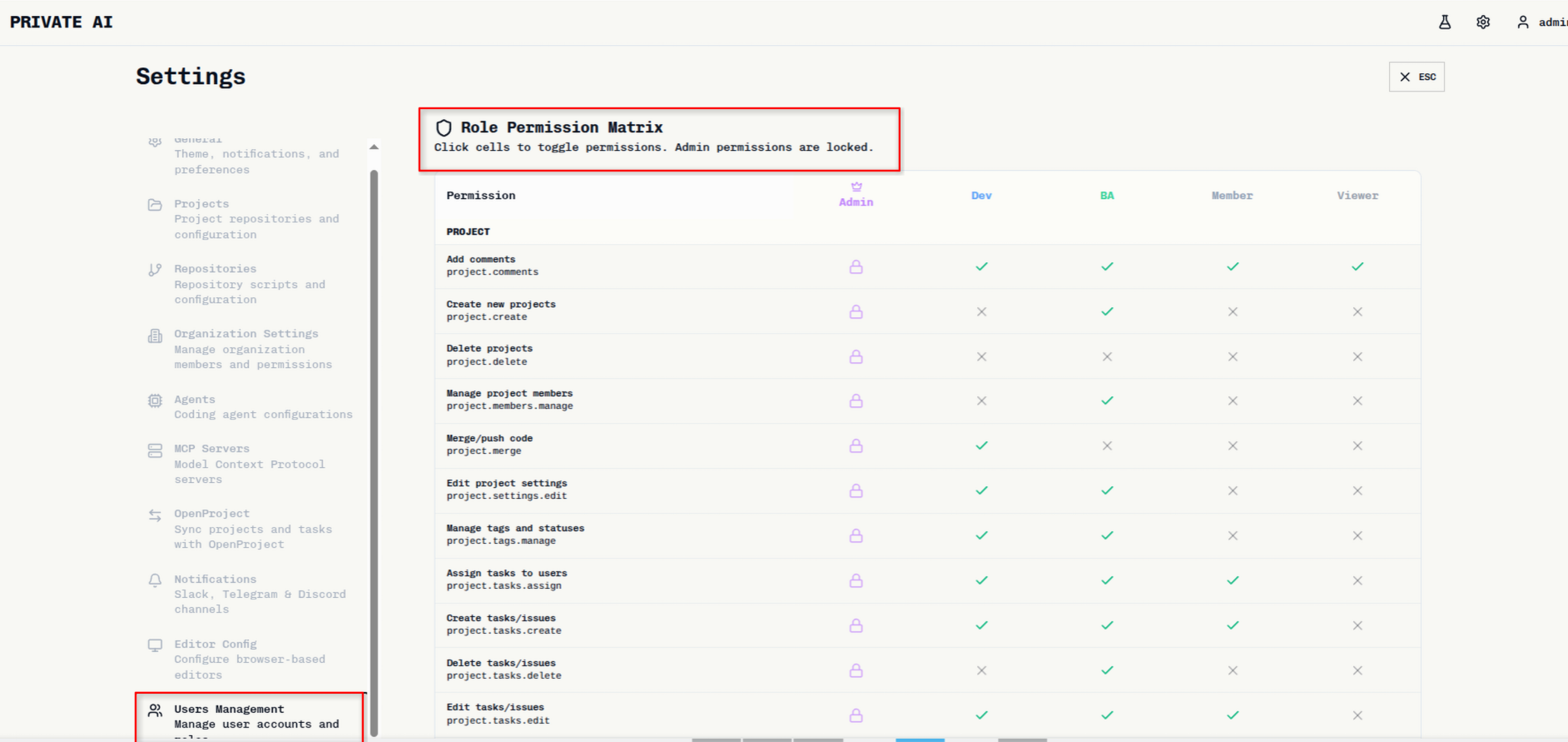
Adding a Role

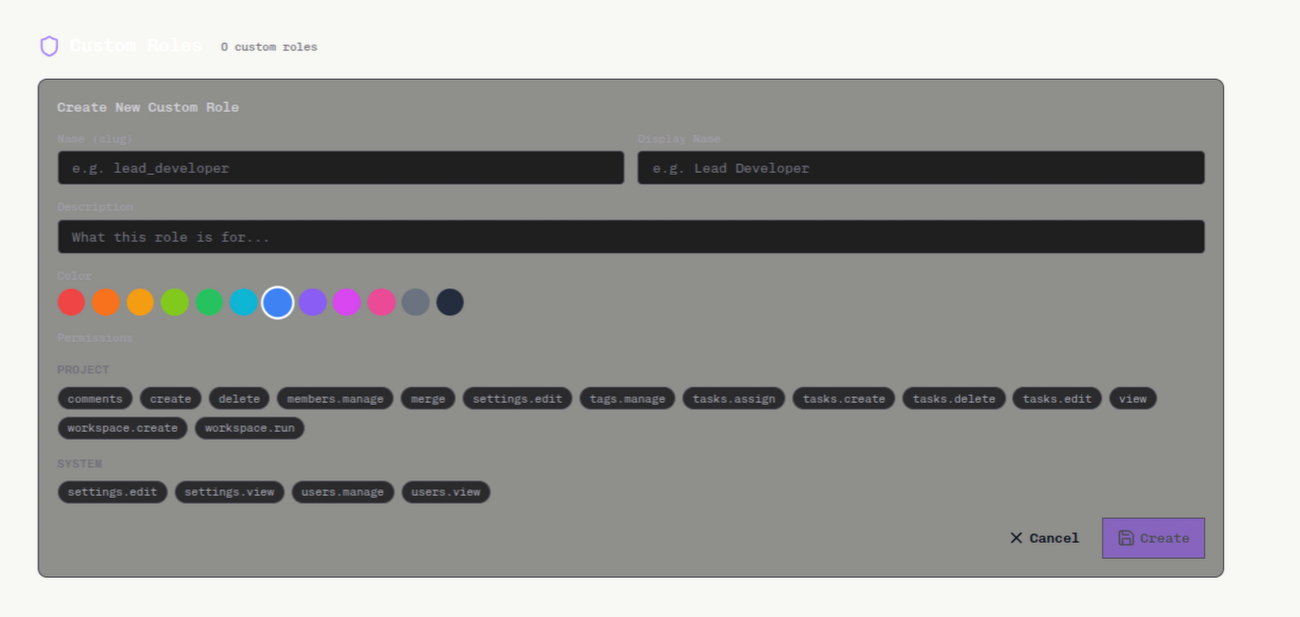
Adding a User
Fill in details
Enter: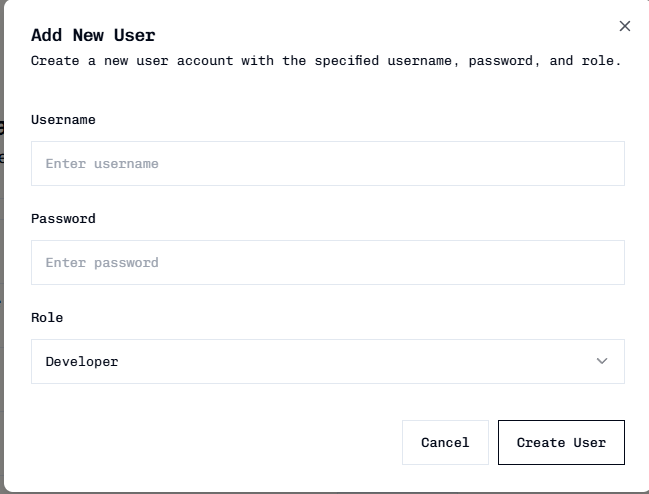
- Username: Unique identifier
- Password: Secure password
- Role:
AdminorDeveloper
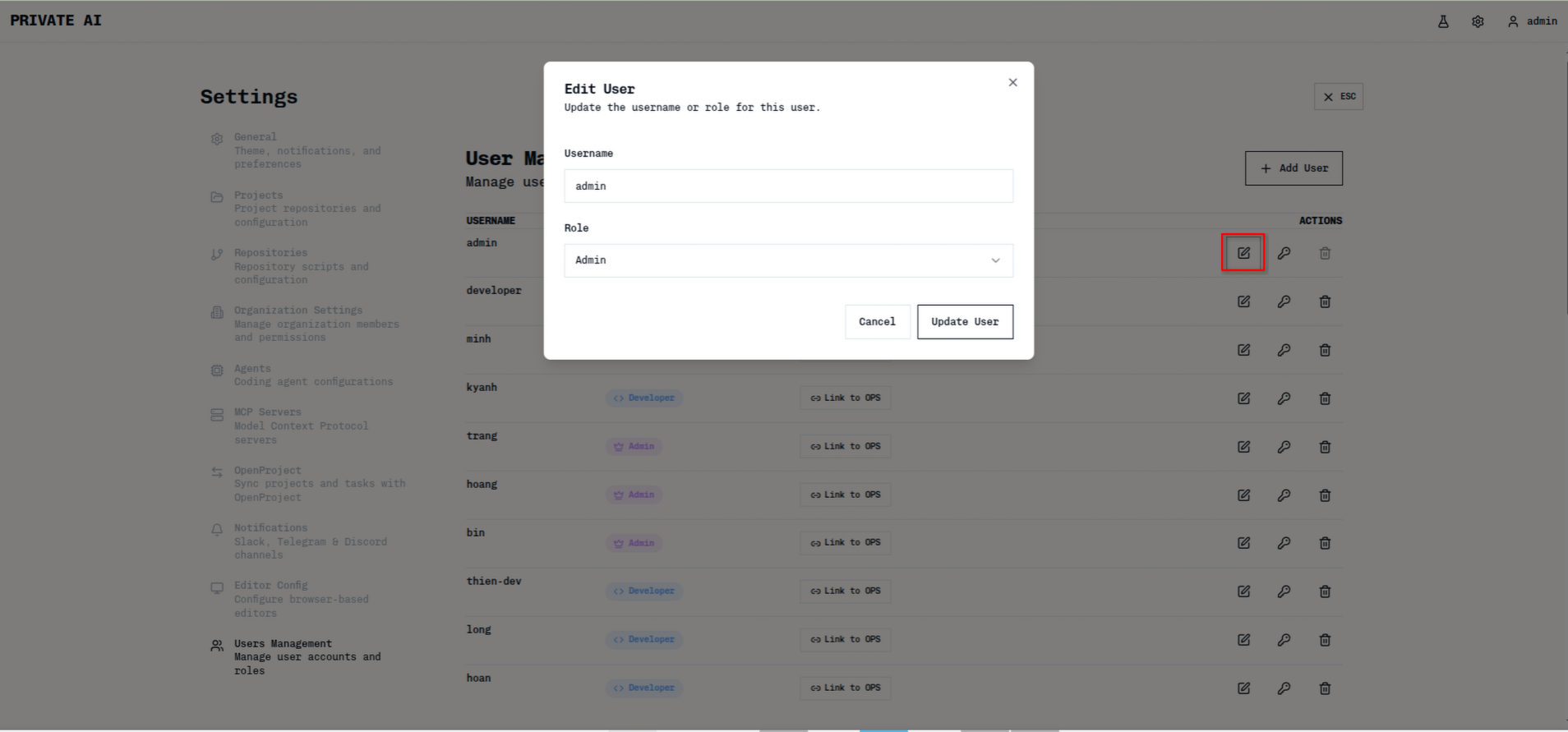
Editing a User
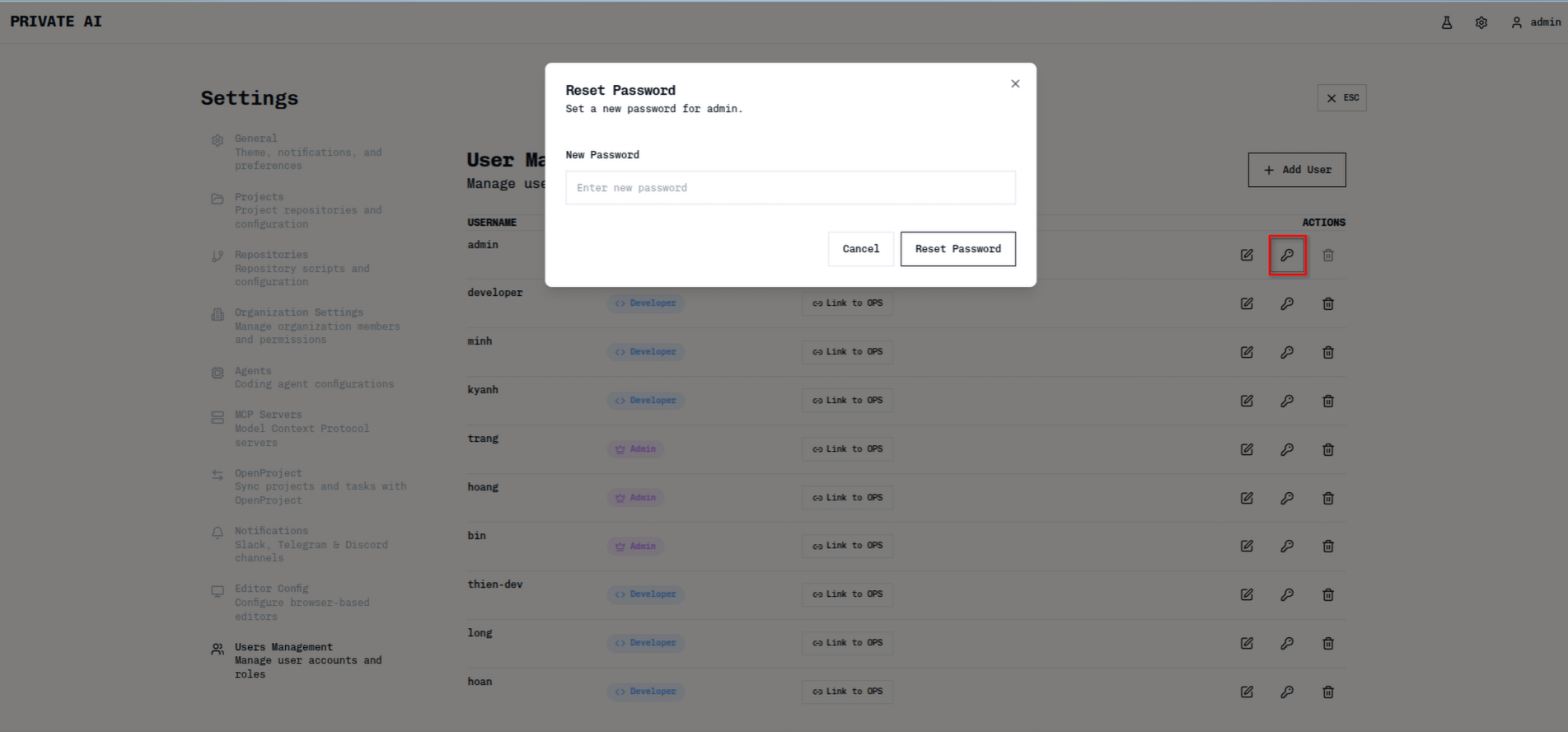
Changing a User’s Password
Linking to OpenProject
- Click the Link icon (chain link) in the Actions column
- Follow the OpenProject authentication flow
- The OPS column will show “Link to OPS” once linked
Deleting a User
- Click the Delete icon (bin) in the Actions column
- Confirm the deletion
Security Best Practices
- Strong passwords: Mix of uppercase, lowercase, numbers, and symbols
- Least privilege: Assign Developer by default; grant Admin only when needed
- Regular audits: Review and remove inactive accounts
- Secure credentials: Never share login credentials
Troubleshooting
User cannot log in
User cannot log in
- Verify username spelling (case-sensitive)
- Check if password was changed by an admin
- Ensure the account hasn’t been deleted
Cannot add a new user
Cannot add a new user
- Confirm you have Admin role
- Check username is unique
- Ensure all required fields are completed
OpenProject link fails
OpenProject link fails
- Verify OpenProject integration is configured
- Check user’s OpenProject credentials
- Ensure network connectivity to OpenProject server